Open the browser view
Your own machine serves the real Armore Edge renderer over loopback, and you open it in a browser tab. Off unless you switch it on. Every status code, header and count below came from running it.
Start it
One environment variable, set on the app's own executable. On macOS:
ARMORE_LITE_WEB=1 "/Applications/Armore Edge.app/Contents/MacOS/Armore Edge"
On Windows, in PowerShell:
$env:ARMORE_LITE_WEB=1; & "$env:LOCALAPPDATA\Programs\Armore Edge\Armore Edge.exe"
Startup prints several lines. The one you need begins
[lite-web] worker on:
[lite-web] worker on http://127.0.0.1:52546/?k=sdJlZPnx0x9uimNGAUUqMS8J9KNP_E3cv9DhiNroyH8
           — 76/76 handlers fronted — serving the REAL renderer from
           /Applications/Armore Edge.app/Contents/Resources/app.asar/dist-renderer
           with the window.armore facade; 76 of its channels are reachable and the
           rest will show as unavailable in the page
Only the macOS command above was run for this page. The PowerShell form is the shipped invocation, but its output was not observed here.
Open the whole URL, including ?k=
The ?k= part is not optional decoration: it is the session token, and
the address without it is useless. Measured against a running worker:
| Request | Response |
|---|---|
| http://127.0.0.1:PORT/?k=TOKEN | 200: the app loads |
| http://127.0.0.1:PORT/ | 401 |
| http://127.0.0.1:PORT/?k=wrong | 401 |
Loading the page with a correct token sets a session cookie, which is what the renderer's own asset requests then ride on:
Set-Cookie: armore_web_session=…; Path=/; HttpOnly; SameSite=Strict
Cache-Control: no-store
X-Frame-Options: DENY
Referrer-Policy: no-referrer
Content-Security-Policy: default-src 'none'; script-src 'self'; style-src 'self';
                         img-src 'self' data:; font-src 'self'; connect-src 'self';
                         base-uri 'none'; form-action 'none'; frame-ancestors 'none'
It is the real renderer, not a cut-down client
The page served on loopback is the same bundle the desktop window loads: the
startup line names app.asar/dist-renderer, and the main script the
served HTML pulls in (assets/index-n54qrmq4.js, 580,515 bytes) is the
same filename present inside the installed app.asar. Alongside it the
server adds a facade that fronts the desktop app's IPC channels over HTTP.
You can count the fronted channels yourself, from the bundle it serves you:
# load the page once to pick up the session cookie, then read the facade
curl -s -c jar.txt -o /dev/null "http://127.0.0.1:PORT/?k=TOKEN"
curl -s -b jar.txt http://127.0.0.1:PORT/assets/armore-web-facade.js \
  | awk '/SHIM_REACHABLE_CHANNELS = \[/,/\];/' \
  | sed 's|//.*||' | grep -o '"armore:[^"]*"' | sort -u | wc -l

76
awk range and
grepping the whole file returns 392: every channel name the bundle
mentions anywhere, not the allowlist. Dropping the sed that strips
// comments returns 77, because one name appears in a
comment inside the array. Only the form above gives the number the server reports.
That agrees with the 76/76 handlers fronted in the startup line. A
fronted channel answers; one that is not returns a specific refusal rather than a
silent failure:
POST /api/invoke   {"channel":"armore:chat-available"}
200  {"ok":true,"value":{"available":true,"model":"…","groundingCapable":true}}

POST /api/invoke   {"channel":"armore:not-a-real-channel"}
501  {"ok":false,"error":"channel-not-fronted","channel":"armore:not-a-real-channel"}
Check what it is reachable from
This is the claim worth testing rather than believing. The listener binds the loopback address only:
lsof -nP -iTCP:52546 -sTCP:LISTEN

COMMAND   PID  USER   FD  TYPE  DEVICE  NODE  NAME
Armore  13965  …      61u IPv4  …       TCP   127.0.0.1:52546 (LISTEN)
And the host's own LAN address refuses the connection, with the correct token, from the same machine:
curl -m 4 "http://192.168.1.14:52546/?k=<correct token>"
curl: (7) Failed to connect to 192.168.1.14 port 52546 after 1 ms: Couldn't connect to server
So another device on your network has nothing to connect to. The port number is assigned by the OS at startup, not fixed.
POST /api/invoke carrying only the cookie returns
401 {"ok":false,"error":"missing-token"}; calls must present
Authorization: Bearer <token>, which the renderer reads from the
bootstrap document. The facade's own source gives the reason: “the session cookie
must never be the thing that makes a call succeed … it is the CSRF shape”. A browser
page on another site cannot borrow your cookie to drive the app.
The port changes every launch. The token does not.
Measured across two restarts of the same install, with nothing else touched:
| Launch | Port | Token |
|---|---|---|
| first | 51632 | 1jzwa3zv…deq6kRs |
| second | 52477 | 1jzwa3zv…deq6kRs, identical |
The second launch said so out loud:
[lite-web] session key REUSED from disk (issued 2026-10-14T07:14:11.913Z) — a
      previously handed-out link still works
.
Rotating it
Quit the app, delete the persisted key, and start it again:
# macOS; the directory is your app profile under Application Support
rm "$HOME/Library/Application Support/armore-edge/<profile>/web-session.sealed"
Next launch mints a new one, and says which happened:
[lite-web] session key minted and persisted (first run) — links handed out now survive restarts
Verified: after rotating, the previous token returned 401 against the new worker and the new token returned 200.
Stop it
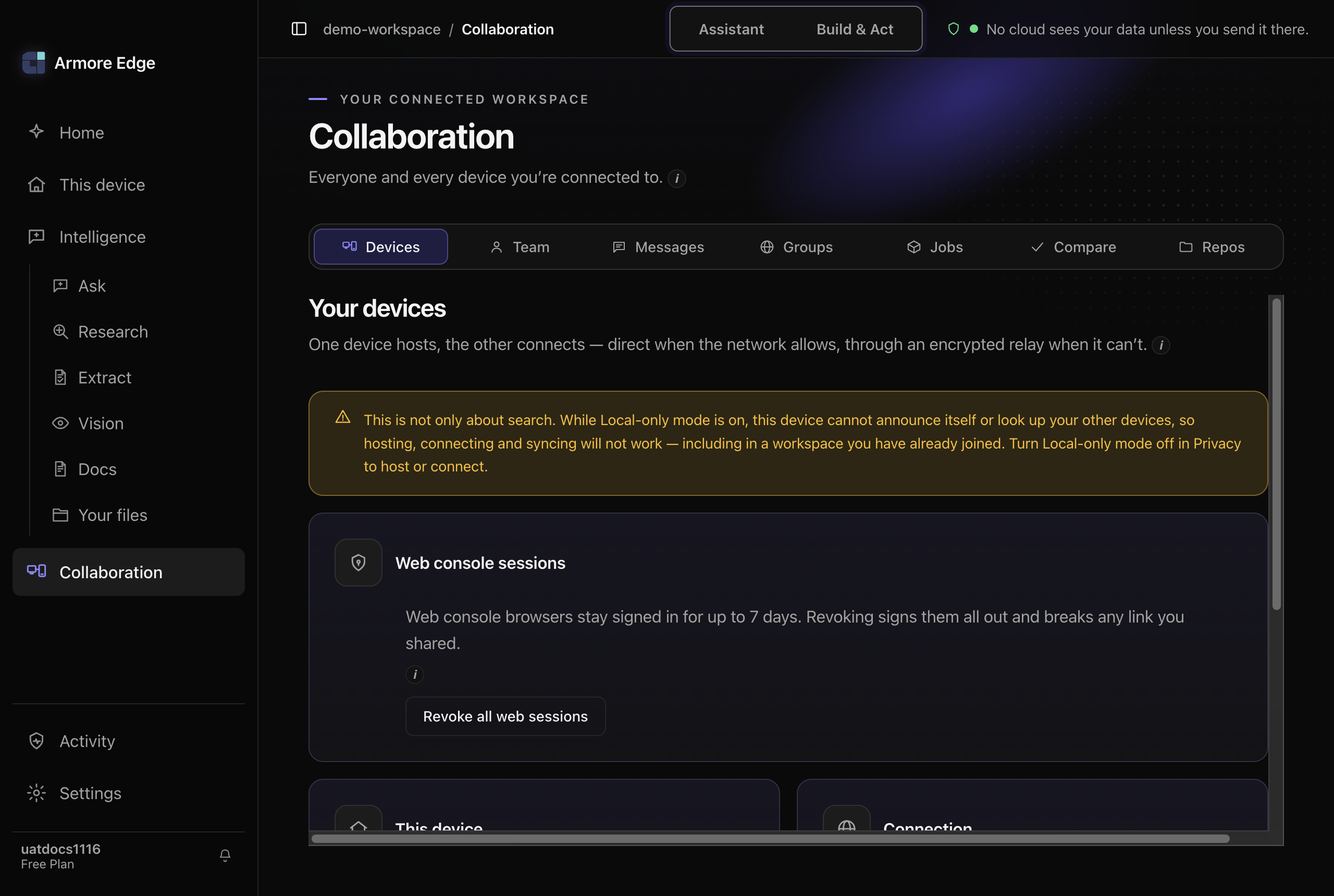
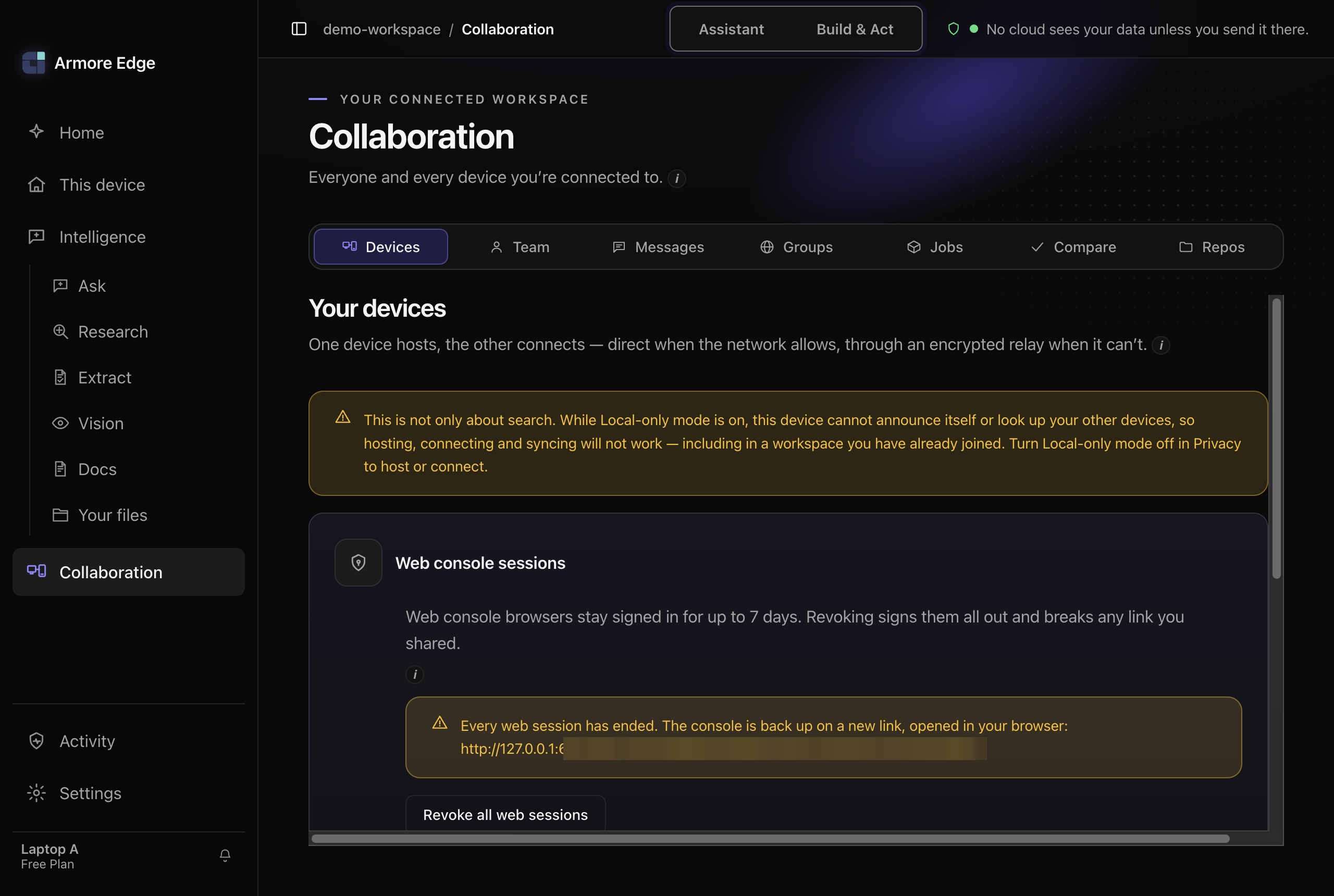
Quit the app. The listener goes with it: lsof on the port returns
nothing and curl to it fails to connect. There is no separate service
left behind to turn off, and the next normal launch (without
ARMORE_LITE_WEB=1) serves nothing.
What leaves, and what this refuses
The same view, from anywhere not open yet
Everything above is served by your machine to your machine. The same workspace is built to be reached from a browser on any network — the laptop you borrowed, a phone, a desk you were not issued — still running on the machine at home, still holding your files there. It would travel through a relay that is treated as an adversary by design: it terminates TLS, holds no session key, and forwards frames it cannot read.
This path is not open yet. The address is live and the gateway answers; what is missing is a way to put your machine behind it and keep it there, so there are no setup steps to follow here. When that lands, this section will carry them.
The sealed channel underneath it
What makes a browser surface safe to use through a network you do not control. The tab and your machine agree a key, then each displays a safety number. You compare them yourself — on the two screens, not through the connection — and approve at the desktop. Comparing out of band is the step that rules out anything in the middle having substituted its own key; an unconfirmed safety number proves a session exists, not that it is private.